

Fine-tuning
Getting Started
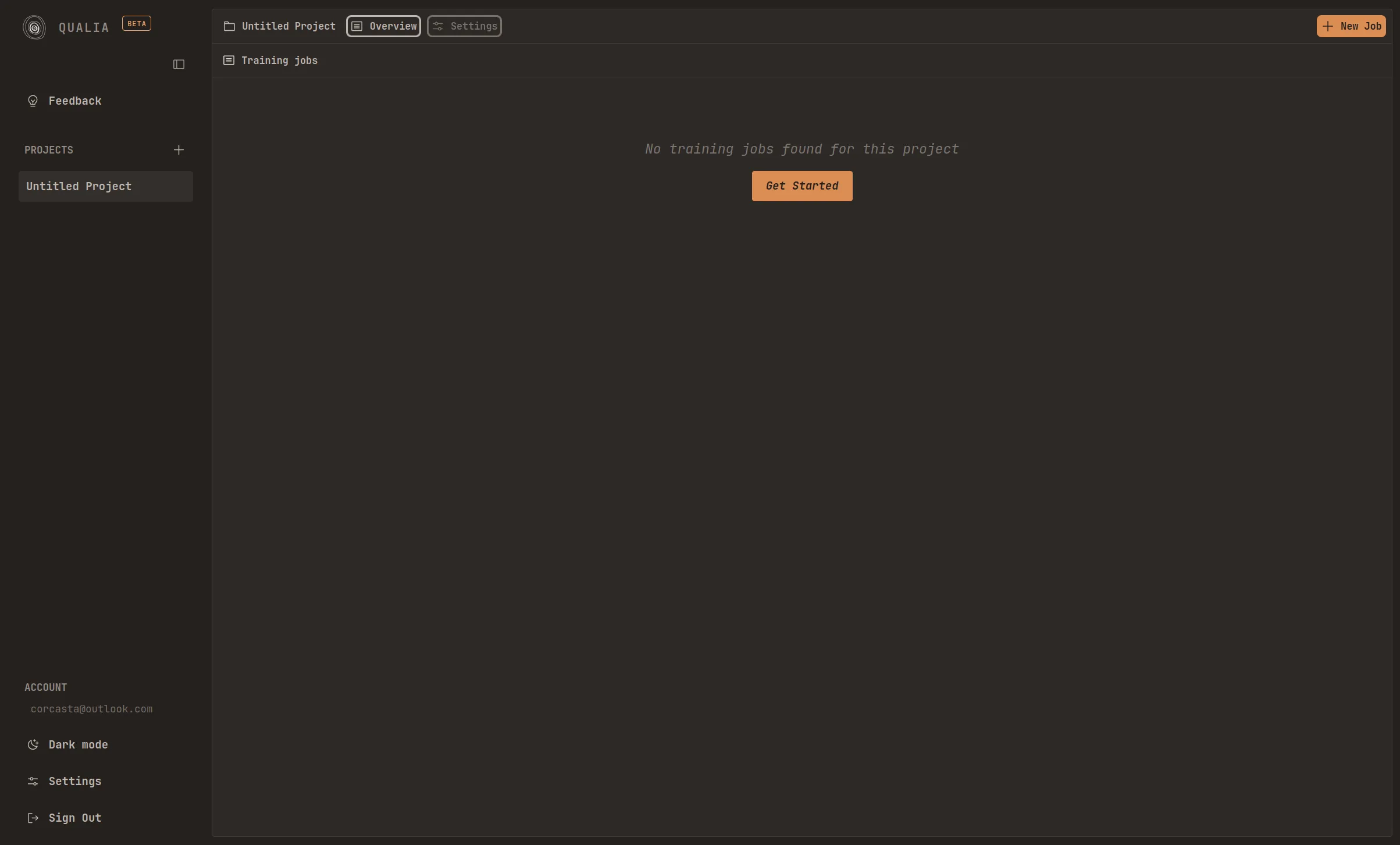
Section titled “Getting Started”After logging into the platform, you will be directed to the main dashboard page. This interface allows you to create and manage multiple projects. Each project can store an unlimited number of training jobs, providing flexibility for organizing your machine learning workflows.
Project Settings
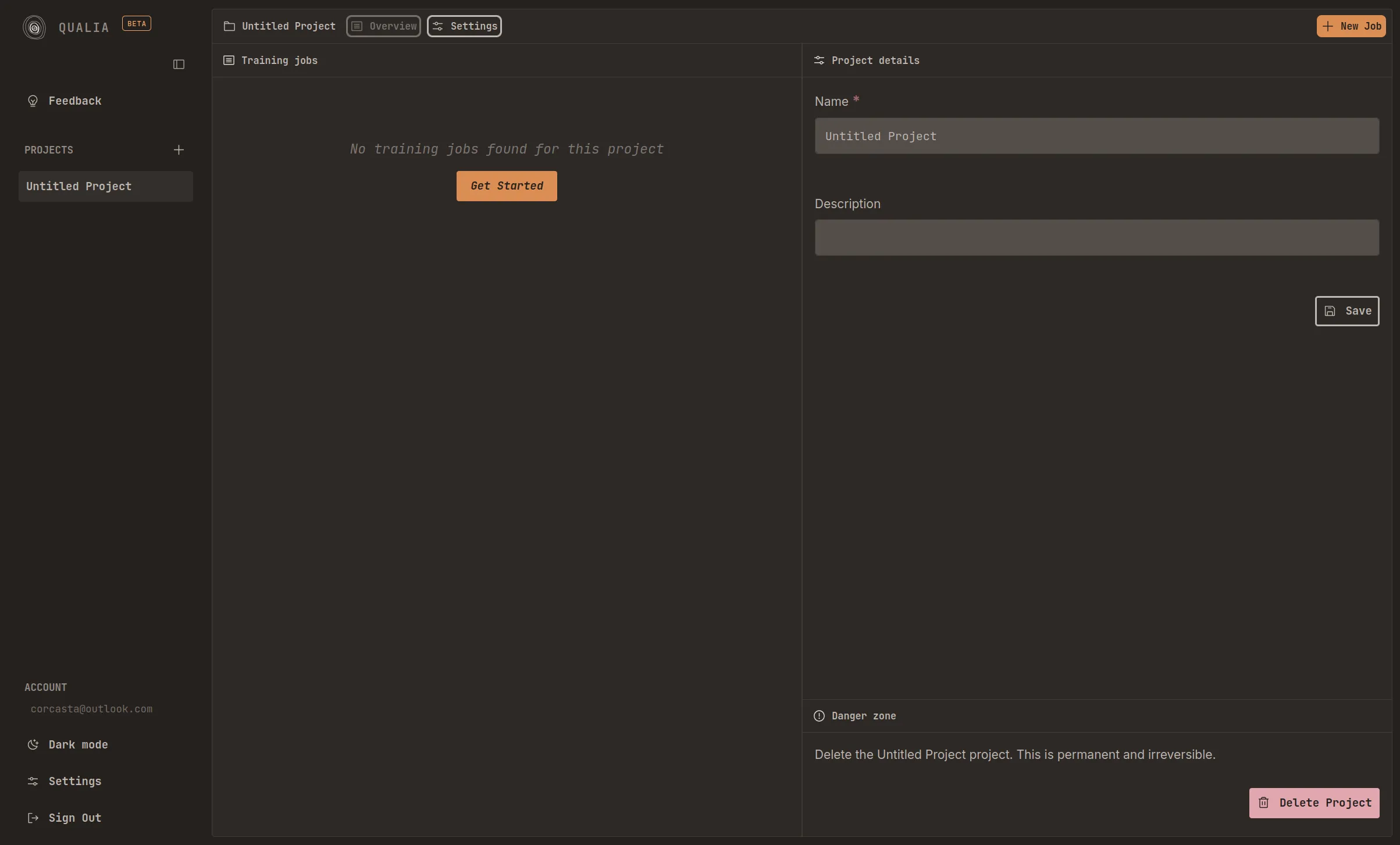
Section titled “Project Settings”Located in the upper left corner of the interface, the Settings section provides essential project configuration options. Within this section, you can:
- Modify the project name to reflect its purpose or content
- Add a brief description to help identify the project’s objectives and scope
Job Creation Process
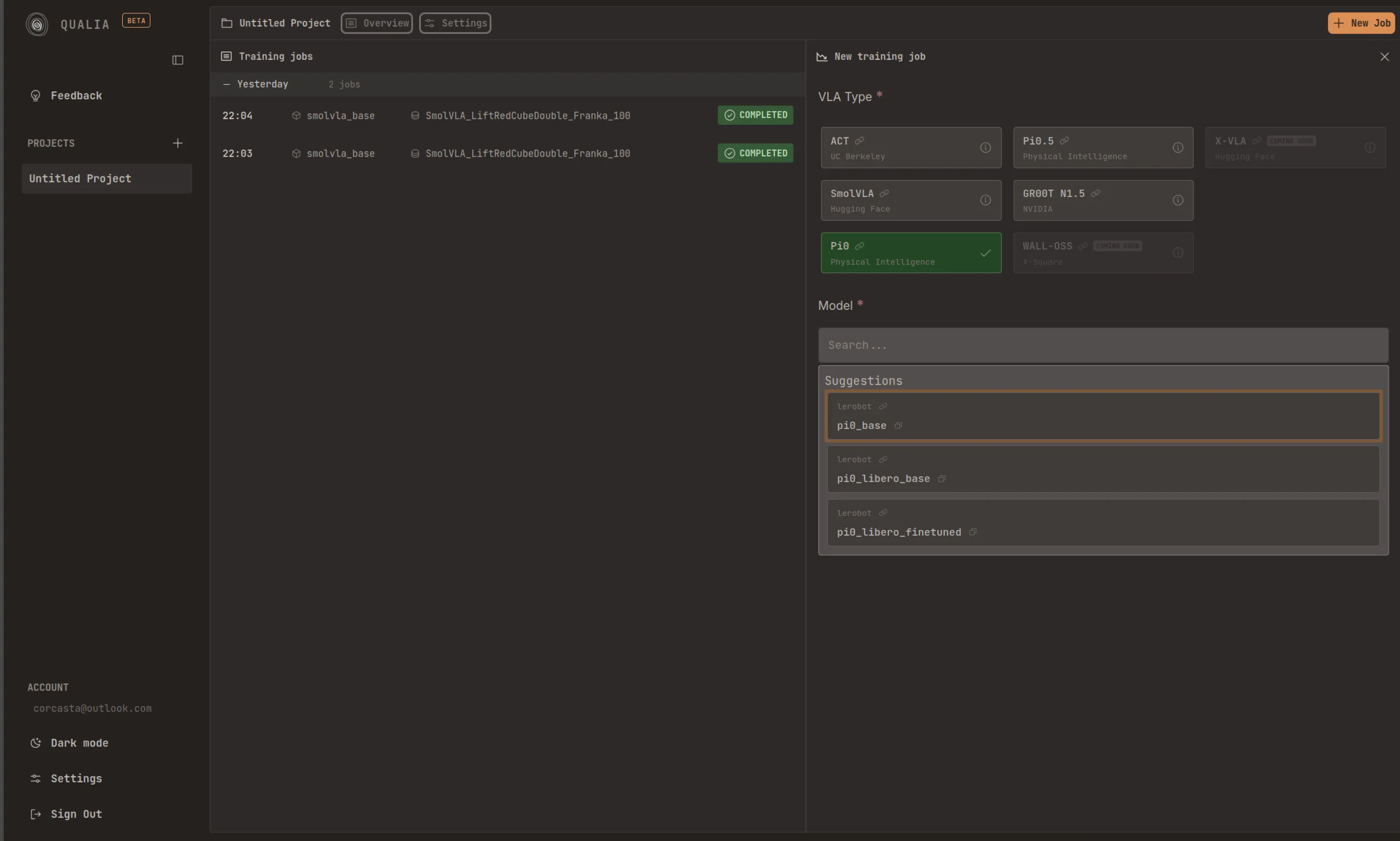
Section titled “Job Creation Process”The orange “New Job” button is located in the upper right corner of the dashboard. Clicking this button opens a comprehensive configuration panel with the following customization options:
- VLA model selection
- Dataset specification
- Observation remapping configuration
- GPU instance type
- Training duration
- Batch size
- Job description
Model Selection
Section titled “Model Selection”The platform currently supports five categories of VLA (Vision-Language-Action) models, as well as one reward model:
- ACT
- Smolvla
- pi0
- pi0.5
- gr00t N1.5
- SARM — reward model for Reward-Aware Behavior Cloning (RA-BC) (soon)
You may select/search from previously trained models within these categories to use as a starting point for your training job.
Dataset Configuration
Section titled “Dataset Configuration”Public Datasets
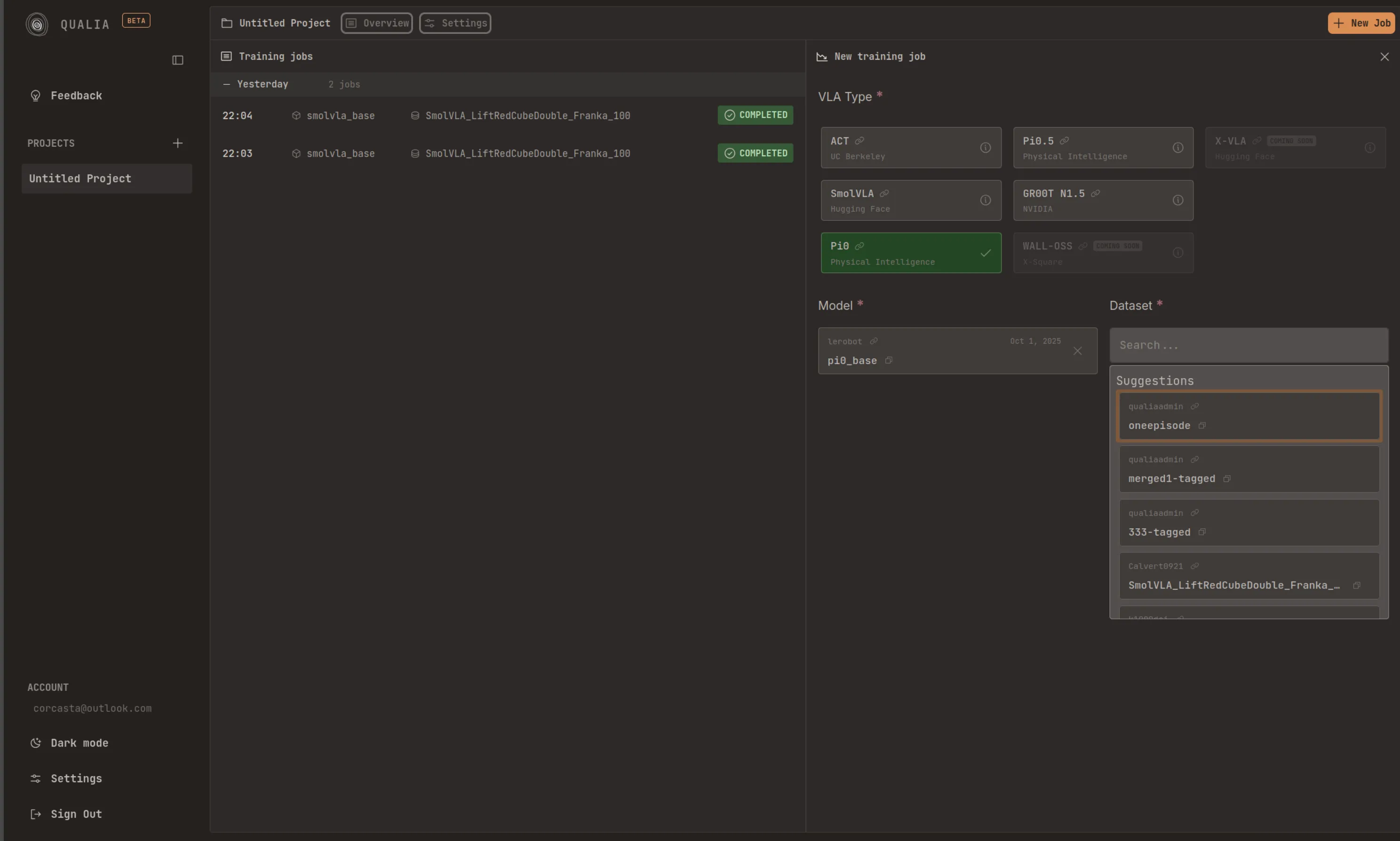
Section titled “Public Datasets”The platform provides access to all publicly available datasets hosted on Hugging Face that comply with the “LeRobotDataset v3.0” format. These datasets can be directly selected and used for training without additional authentication.
Private Datasets
Section titled “Private Datasets”To utilize your private datasets, you must link a Hugging Face access token with the platform. This authentication step enables the platform to access your private repositories and datasets stored on Hugging Face.
Image Key Configuration
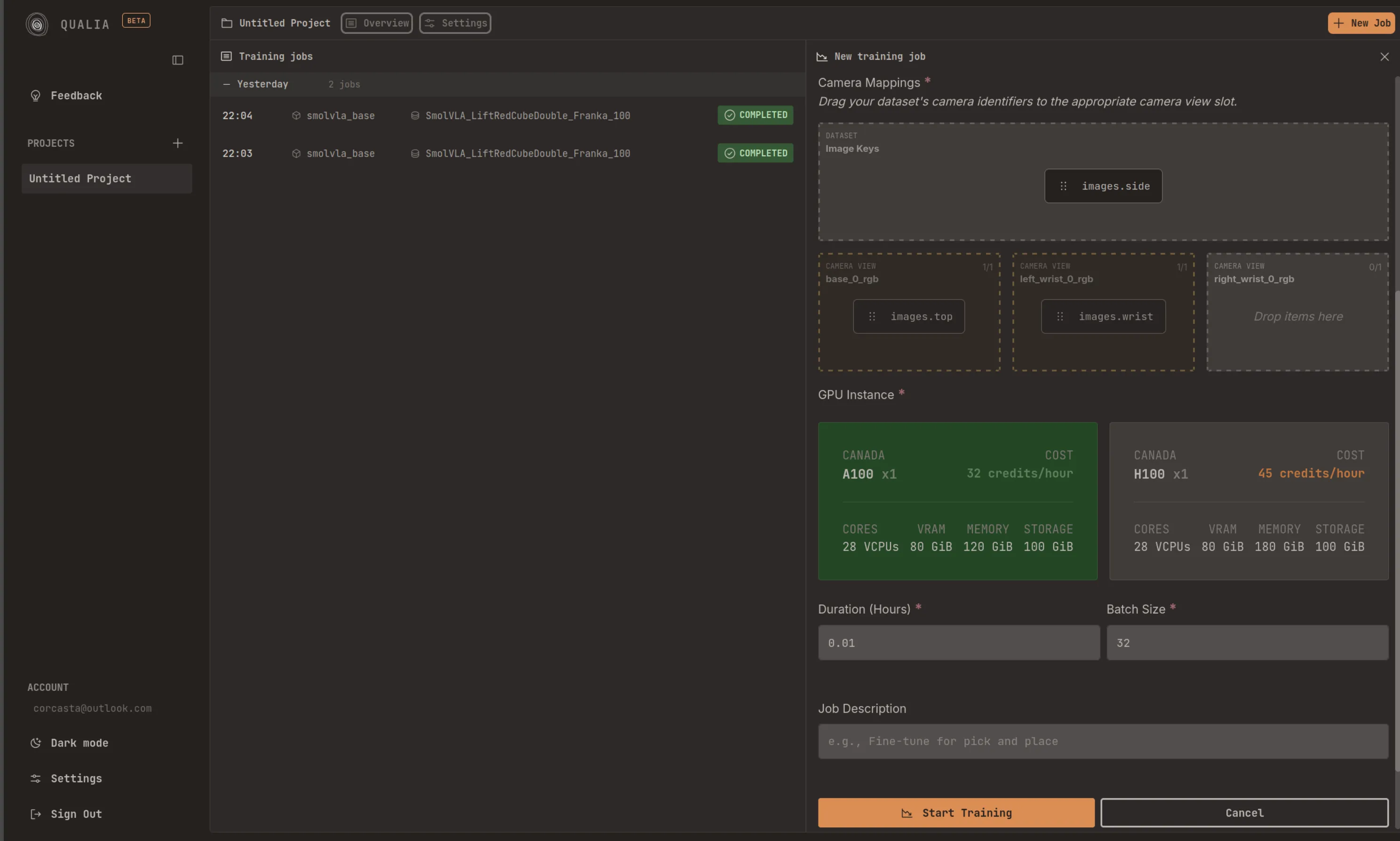
Section titled “Image Key Configuration”During dataset configuration, you must select the appropriate image keys from your dataset and assign them to the corresponding camera view blocks. This mapping ensures that the training process correctly interprets and utilizes the visual data from your dataset.
Training Configuration
Section titled “Training Configuration”After configuring the model and dataset, you must specify the following training parameters:
- GPU Type: Select the GPU instance type that best suits your computational requirements and budget constraints
- Training Duration: Specify the desired length of the training session
- Batch Size: Define the number of samples processed in each training iteration
Monitoring Job Execution
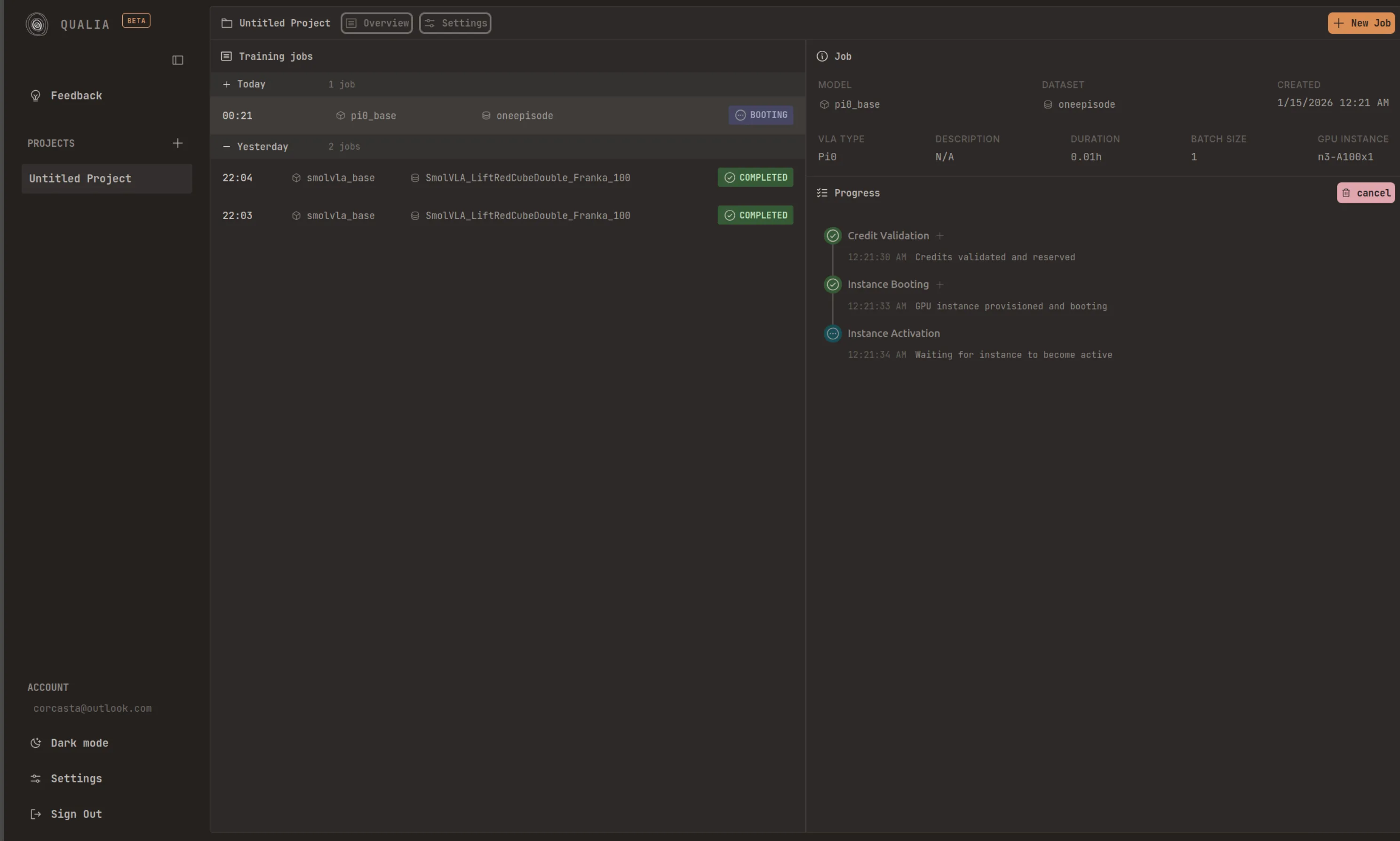
Section titled “Monitoring Job Execution”Once your training job begins execution, the platform displays a series of progressive steps that indicate the current status of your job. Each step is color-coded to provide immediate visual feedback:
- Blue: Indicates that the step is currently being executed
- Green: Confirms that the step has completed successfully
- Red: Signals that an error has occurred during execution
Model Storage and Publishing
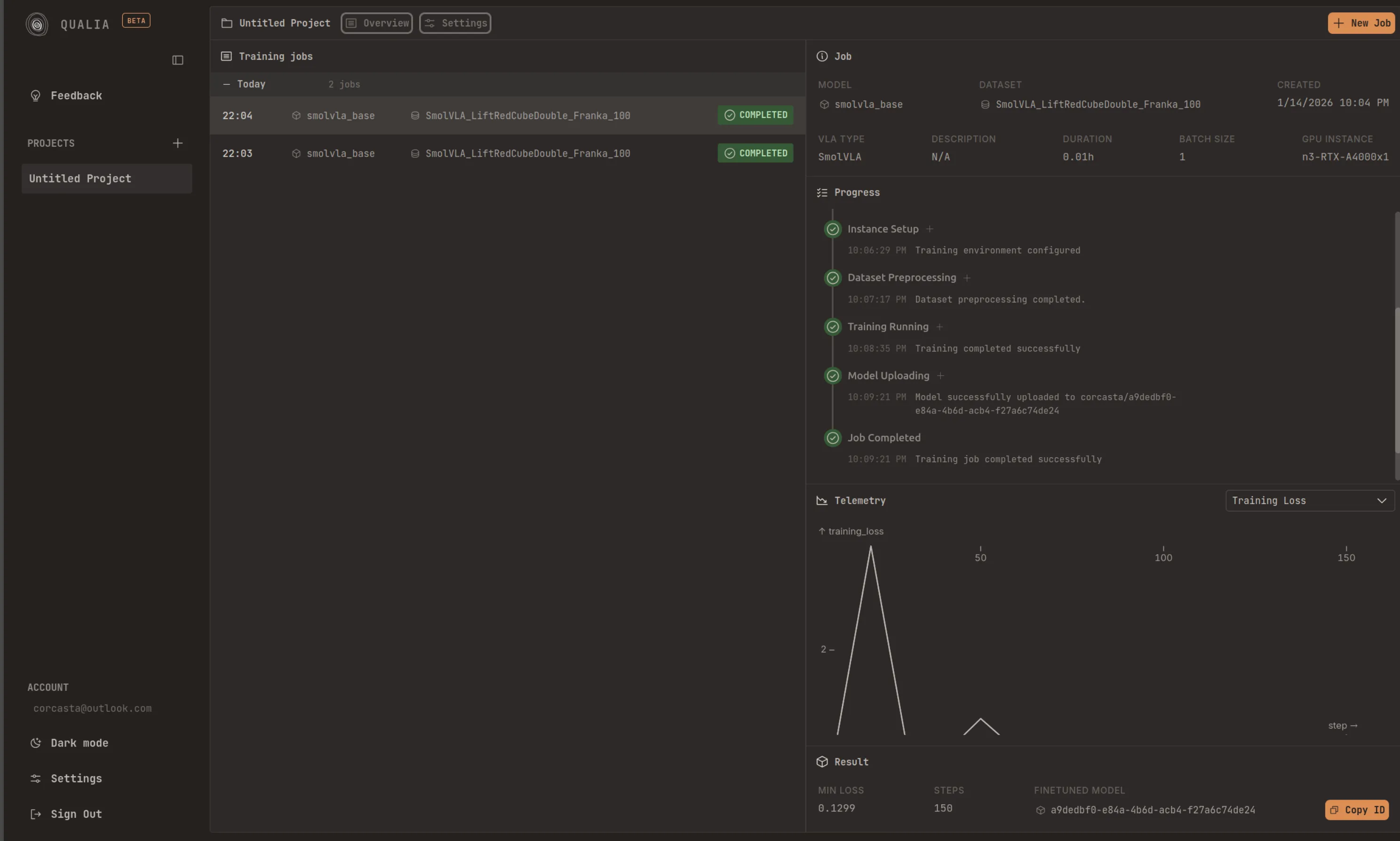
Section titled “Model Storage and Publishing”Upon successful completion of your training job, the final step will display “Job completed.” This indicates that all training processes have finished without errors. By default, your trained model will be stored in the platform’s official Hugging Face account as a public repository. This allows for easy sharing and accessibility within the machine learning community.
Private Storage
Section titled “Private Storage”If you require private model storage, you must link a Hugging Face access token from your personal account. This configuration ensures that your trained models are stored in your private repositories, providing enhanced security and control over access permissions.
Accessing Your Model
Section titled “Accessing Your Model”Once the “Model Uploading” step completes, the system will display a confirmation message containing your model’s repository ID. This identifier can be used to access, download, or reference your trained model on Hugging Face.